Payouts
CrazyGames uses Tipalti, a global payment automation platform, to handle monthly developer payouts securely and efficiently.
Before receiving any payments, you’ll need to complete a short onboarding via our Developer Portal. We highly recommend finishing this step early to prevent delays.
Note
While we provide guidance here, CrazyGames does not offer legal, tax, or financial advice. If in doubt, consult a licensed professional.
Questions? Reach out to [email protected]
Getting started with payment setup
To begin receiving revenue from CrazyGames:
- Log into the Developer Portal.
- Navigate to Account → Billing.
- Complete all required fields in Steps 1–4.
- Double-check all entries for accuracy.
Note
Any errors or incomplete details can delay your payouts. Some fields may require additional verification.
Payment Methods
We offer multiple payout options through Tipalti
- Wire Transfer
- Direct Deposit / ACH
- eCheck
- PayPal
The availability of each method depends on your country and local financial regulations. Each method may include processing fees and minimum thresholds.
You can also choose to temporarily hold your payments. These funds will be released once you update your payment method to an eligible option again.
Note
Regardless of payment method selected, CrazyGames requires a minimum of €100 in earnings before issuing a payout.
Payment Timeline & Thresholds
Payments are made monthly, or once your total unpaid earnings reach €100.
While CrazyGames operates with NET 60 payment terms, we currently aim to process payments sooner, typically by the 10th of the following month (so NET 10 in practice).
Example 1
You earn €100 in January → An invoice is generated in early February → Payment is processed mid-February.
Example 2
You earn €30 in January and €70 in February → An invoice for €30 is generated in early February, and an invoice for €70 is generated early March → Both invoices are paid out together mid-March.
Note
Actual receipt dates depend on your selected method, local bank processing, and country-specific factors.
Tracking Payouts & Invoices
To view past or pending payments:
- Go to Account → Billing → Payment & Invoice History
- You can download PDF receipts and review payment status updates there.
To estimate your monthly payout:
- Visit the Developer Portal, open the reporting view and set the timeframe to Previous Month.
Note
The amounts on the self-billing invoice are leading. Minor discrepancies with reporting can exist due to timezone & cut-off differences
Frequently Asked Questions
Why am I unable to submit my game without completing the payment setup?
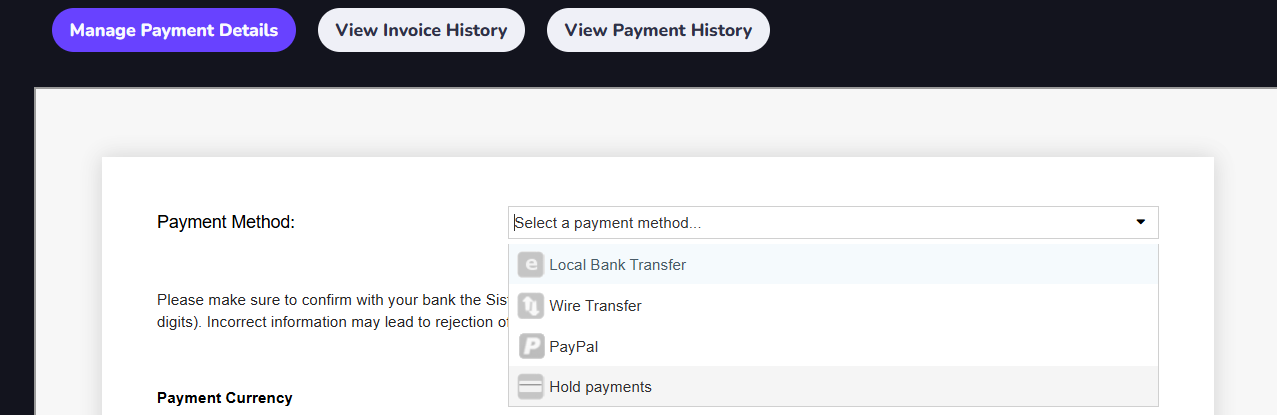
To create your self-billing invoices based on your monthly earnings, we need a few details from you. Please provide your personal or company information, including your address and country. You can complete the onboarding process without adding payment details by selecting the “hold payments” option in step 2.
Who do I contact if I get stuck during the payment setup?
Tipalti provides in-portal help and standard FAQs. If you're still having trouble, email [email protected] for assistance.
What is Tipalti and why is CrazyGames using it?
Tipalti automates payments and supports a wide range of international payout methods. It ensures partners like you receive funds quickly and securely.
How do I complete my registration?
Login to the Developer Portal → Go to Account > Billing → Complete all sections (Address, Tax Details, Payment Info).
Tip: Each section auto-saves after clicking Next, so you don’t need to complete it all in one go.
My address won’t validate. What should I do?
After entering your address, click Next. If the system detects issues, you may need to scroll to the top and accept a suggested format before continuing.
Can I choose a different currency?
Yes, certain payment methods allow selection of a different payout currency. Be aware that foreign exchange (FX) fees apply when converting from USD/EUR to another currency.
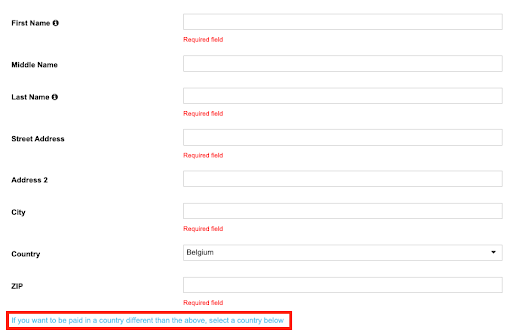
My business is registered in one country, but my bank account is in another. What now?
In the first step of registration, click on ‘if you want to be paid in a country different than the above, select a country below’ at the bottom of the address form:
Which tax form should I fill out?
Tipalti’s built-in wizard will guide you through selecting the correct form based on your location and entity type.
Why is PayPal not shown as an option in my country?
In the first step of registration, choose your Payment Country at the bottom of the address form and set this to ‘United States’. PayPal transactions are processed in USD, so we strongly encourage you to select USD as currency, otherwise FX fees will be charged.
Tipalti doesn’t process payments to my country. What should I do?
Please contact [email protected] so we can investigate your specific situation. You can still receive monthly invoices by putting your payment method on ‘Hold Payments’.
How can I update my address or bank info after registration?
Simply log in and update your profile under Account > Billing. Some changes may invalidate previously submitted tax/bank info. You’ll be prompted if updates are needed.
How do I pause payments?
Select “Hold Payments” under Account > Billing > Info (Step 2). This takes effect immediately. Once you’re ready to receive payouts again, update your payment method and we’ll include any held payments in the next cycle.
Why did I receive less than expected?
Your bank may deduct intermediary fees or FX conversion charges. CrazyGames has no control over these charges. Please contact your bank for full fee breakdowns and ask if there’s a preferred intermediary bank that could reduce costs.
Can I bundle payments to lower the transaction costs and how?
If you put your payment method on ‘Hold Payments’ you will receive a monthly self-billing invoice, but no payout. When, after a few months, you decide the amount is high enough to be paid out, you can update your payment method and all self-billing invoices will be paid out in 1 transaction, so you save on transaction costs.
I made revenue last month but no invoice is visible - why?
In general we advise you to wait a few business days after month-end. Invoices appear under Payment & Invoice History once they're generated. We have an invoicing threshold of 10 EUR, amounts below the threshold are transferred to next month’s earnings.
My payment has been “in process” for a long time.
This often means missing or invalid info. You should have received an email with required updates. If not, double-check your billing info. If it’s locked, contact [email protected].
My payment was rejected - what should I do?
Check the rejection notes under Billing > History. Confirm all entered info is accurate, including currency-specific account details. Once updated, the system will automatically reprocess the payment in the next cycle.