Custom CrazyGames build
Unity exposes a large number of build settings that directly affect the performance of your game on the web: compression format, exception support, data caching, code stripping, code optimization, WebAssembly configuration, and more. On top of that, different devices benefit from different texture formats: ASTC works best on mobile, while DXT is better suited for desktop, meaning a single texture build is always a compromise. It's also easy to lose track of what actually ends up in your final build. Unused assets that are still referenced somewhere will silently bloat your build size.
Managing all of this by hand is error-prone and time-consuming. That's why we created the custom build tool: to automatically apply the right settings, generate device-optimized variants, and give you a clear picture of exactly what is included in the build (see Analyzer). This will help you squeeze every last bit of performance out of your game without the guesswork.
Info
The custom build feature is new, if you encounter any issues, you can always build your game as usual and submit it on CrazyGames.
How to create a custom build
Be sure you are using the latest Unity SDK. A new CrazySDK top menu bar item should appear in Unity. From there you can access the build window:
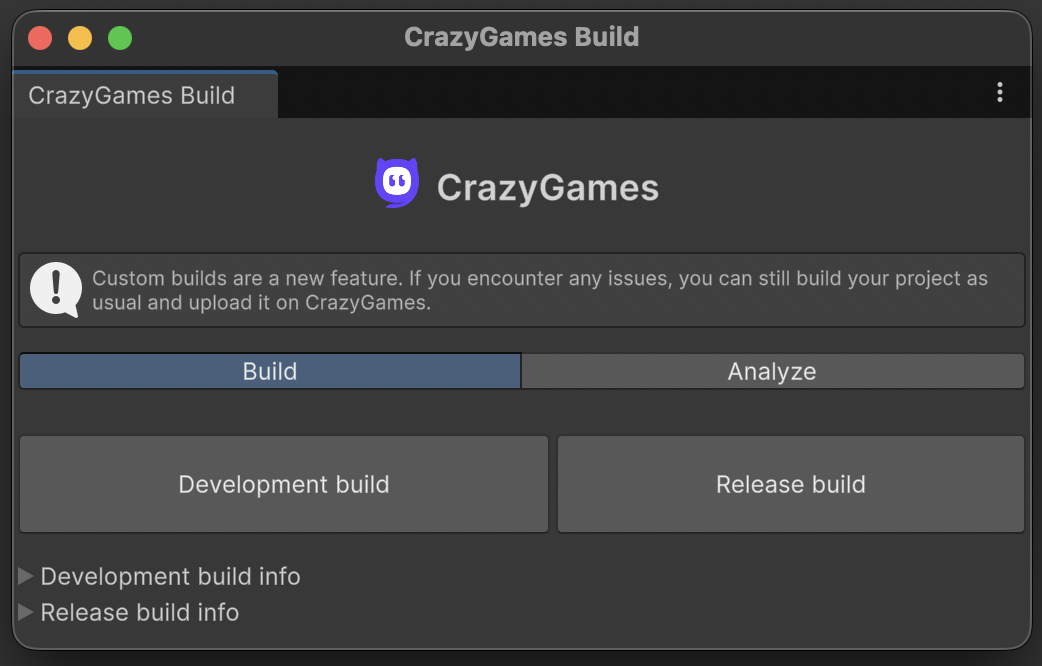
You can do a quick development build for local testing. When you are ready to upload your game on CrazyGames, you should do a release build. This will take more time compared to a normal Unity build, as there will be multiple builds performed to get code and data files better suited for various mobile/desktop platforms. This is why the release build folder will also be larger compared to your normal builds, however we only pick specific files from there to load. We also apply the Disk Size With LTO flag to decrease the build size, which makes the build process last longer than usual.
The release build is found in the Builds/CrazyGamesRelease directory at the root of your project. Please upload all files from that folder when submitting your build on CrazyGames.
Analyzer
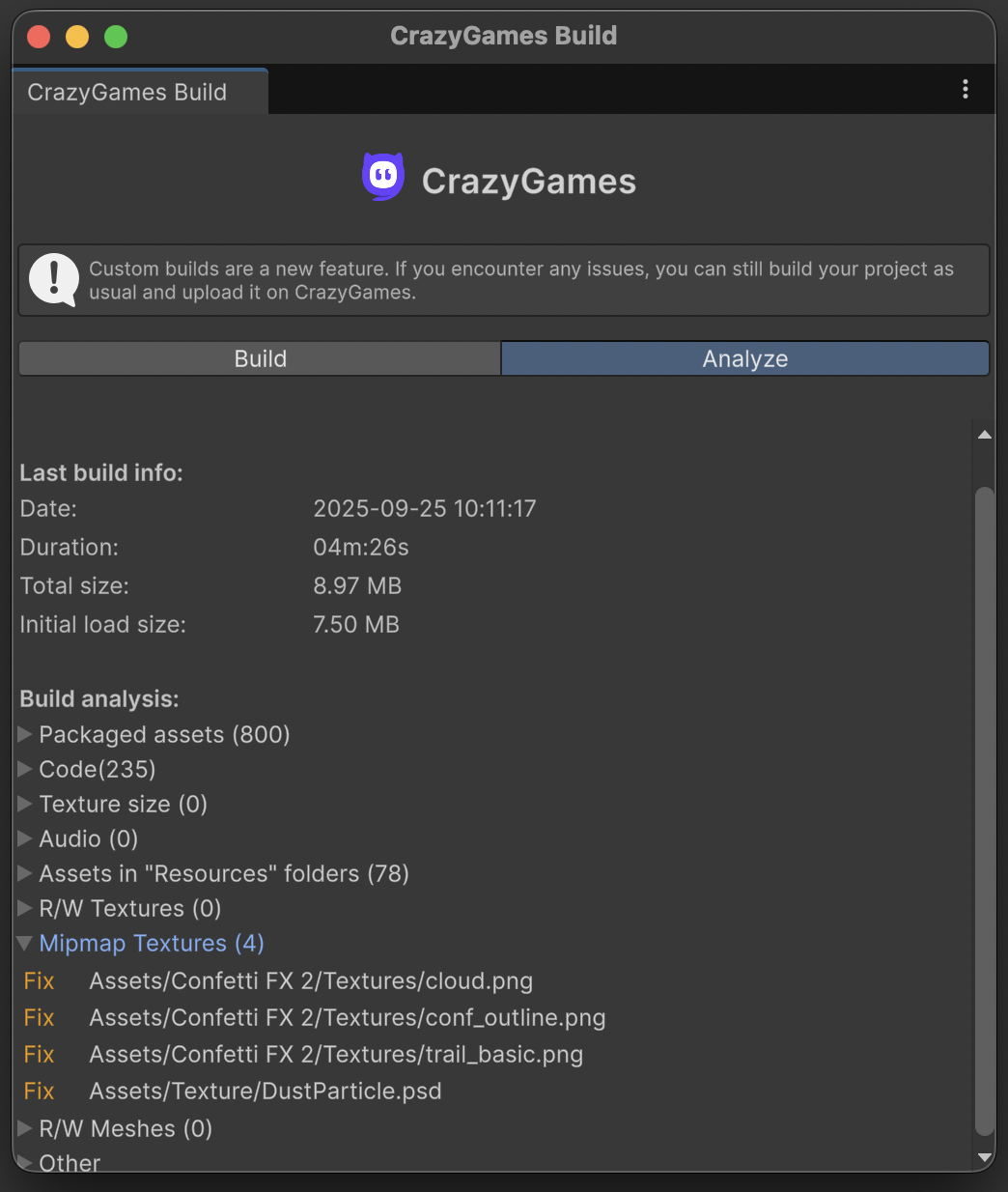
In the custom build window you will also find the Analyzer tool, which provides helpful insights about the assets and code that end up in your build. Following those suggestion will help you optimize the performance, size and memory usage of your build even more. If you need help, don't forget to click the Show help button which will reveal additional information for each section.