Unity - Common Issues
This page contains issues that you may encounter in Unity WebGL games, and potential fixes to them.
Cursor locking
When players open the game page, your game begins loading immediately. If you attempt to lock and hide the cursor right at startup, before the player has interacted with the game, this can lead to issues such as:
- The cursor not being fully locked
- Scrolling actions causing the game to crash
To avoid these problems, it is recommended to delay cursor locking until after user interaction. You can do this in one of the following ways:
-
Display an overlay message such as:
"Please click to lock the cursor"
(useful if cursor locking is required immediately) -
Require a simple user action before locking the cursor, for example:
A "Play" button that the player must click before the game starts
MacOS rendering issues
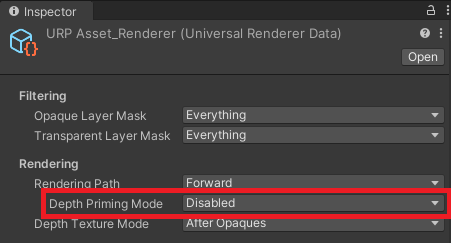
If you are using URP, you may encounter rendering issues on Mac (black meshes, or flickering meshes).
A potential fix is to disable Depth Priming Mode in Universal Renderer Data.
WebGL random abnormal high values in mouse input
We have encountered some games randomly registering an abnormally high mouse input when reading the mouse movement. If your game is also affected by this issue, you can use the following script:
using UnityEngine;

public class WebGLMouseInput : MonoBehaviour
{
    public float diffThreshold = 100f;
    public float absMax = 800f;
    public int maxConsecutiveSpikes = 2;

    private float _prevX,
        _prevY;
    private int _spikesX,
        _spikesY;
    private float _outX,
        _outY;

    void Update()
    {
        float dx = Input.GetAxisRaw("Mouse X");
        float dy = Input.GetAxisRaw("Mouse Y");

        _outX = Filter(dx, ref _prevX, ref _spikesX);
        _outY = Filter(dy, ref _prevY, ref _spikesY);
    }

    private float Filter(float cur, ref float prev, ref int spikes)
    {
        if (Mathf.Abs(cur) > absMax || Mathf.Abs(cur - prev) > diffThreshold)
        {
            spikes++;
            if (spikes >= maxConsecutiveSpikes)
            {
                prev = 0f;
                spikes = 0;
            }
            return 0f;
        }

        spikes = 0;
        prev = cur;
        return cur;
    }

    public float GetDeltaX() => _outX;

    public float GetDeltaY() => _outY;
}
Attach it to an object in your scene, and obtain the mouse input via the GetDeltaX or GetDeltaY methods.