CrazyGames App
Besides the website, we are also available as a mobile app on the App Store and on Google Play, giving players another way to discover and play web games on mobile devices.
Most mobile web behavior is the same inside the CrazyGames App. Authentication, SDK calls, game progress, ads, and platform behavior should work as they do on the mobile website.
However, some app-specific differences are important to consider when developing or updating your game. This page explains how to detect that your game is running inside the app, how to handle in-game purchases, and how to prepare your UI for fullscreen mobile devices.
Detecting the app
Use the SDK's System info field applicationType to detect where the game is running.
The app values are:
google_play_store: the game is running inside the Android app.apple_store: the game is running inside the iOS app.
In-app purchases
Inside the CrazyGames App, players can only pay on app versions and in store countries that support it. store.isAvailable returns true on supported devices (always true on web). It does not tell whether the player is signed in.
Warning
Do not show purchase buttons or payment flows that cannot be completed inside the CrazyGames App. Hide or disable those UI elements when isAvailable is false, so players are not sent into an unsupported flow.
Safe area padding
Games open in fullscreen mode inside the CrazyGames App. The app also supports a true fullscreen immersive mode where the game can render edge to edge on the device.
On some devices, rounded corners, notches, and dynamic islands can overlap or cut off UI placed too close to the screen edges. This is especially visible for buttons, menus, health bars, currencies, and other important HUD elements.
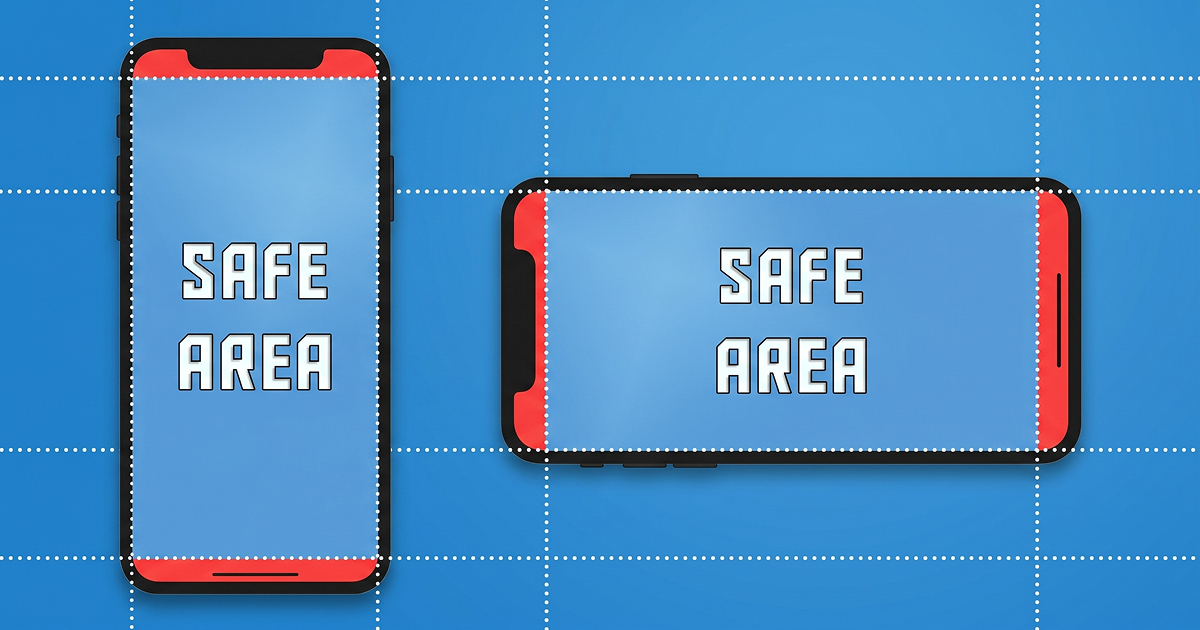
If your mobile build already supports safe area padding, enable the same behavior when the game is running inside the CrazyGames App. If not, add padding for important UI when applicationType is google_play_store or apple_store.
For HTML5 games, prefer the CSS safe area environment variables where possible:
.game-ui {
    padding-top: env(safe-area-inset-top, 0px);
    padding-right: env(safe-area-inset-right, 0px);
    padding-bottom: env(safe-area-inset-bottom, 0px);
    padding-left: env(safe-area-inset-left, 0px);
}
These values can be combined with your own minimum UI padding to keep important UI away from device edges.
Tip
Keep gameplay fullscreen, but move important UI into the safe area. This preserves the immersive app experience while preventing controls and information from being hidden by device edges.
Offline mode
Players can download games in the app and play them later without an internet connection. Use isOfflineMode to detect this and hide features that need a connection, such as multiplayer, leaderboards or purchases.
Sitelock and CSP
The page embedding your game in the app is capacitor://app.crazygames.com on iOS and https://app.crazygames.com on Android, not www.crazygames.com. If your game is sitelocked with a Content-Security-Policy: frame-ancestors header, these origins have to be listed explicitly. Entries without a scheme only allow ancestors served over https, so on iOS the game is blocked and players see a white screen.
See Protecting iframe games for the full explanation and an example header.